Help centre
Create devs3 article drafts with ChatGPT
Connect your devs3 account through OAuth, draft in English or Bengali, and save the result as an unpublished article. You remain in control of review and publishing.
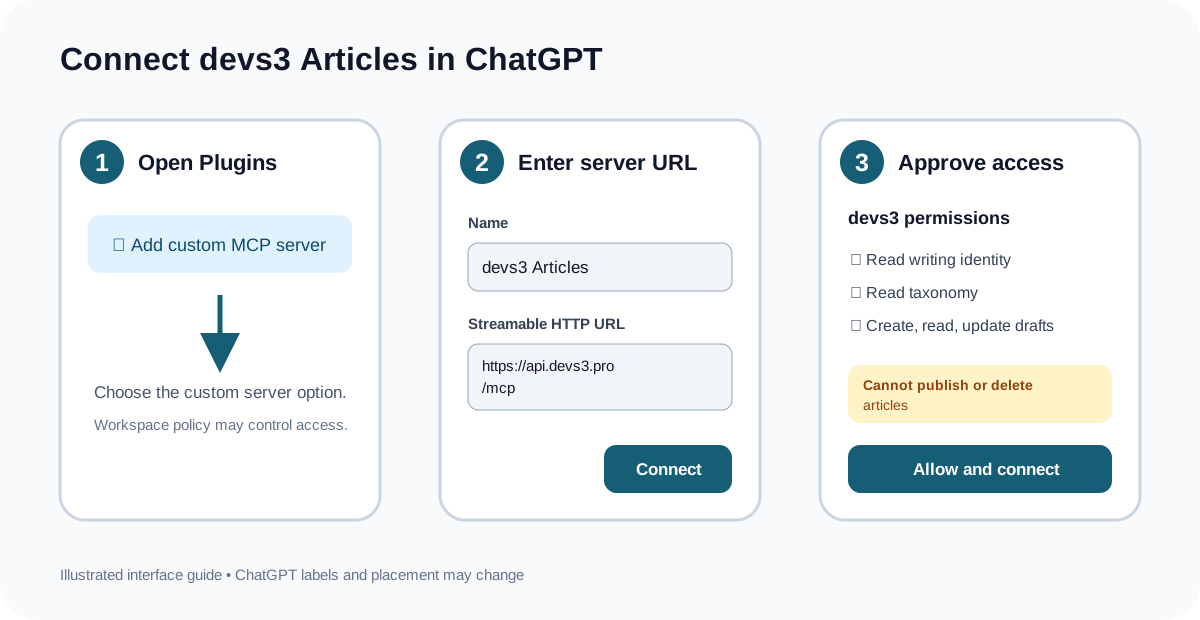
Connect from ChatGPT
- 1
Sign in to devs3 in your browser. In ChatGPT, open Plugins, select the plus button, then choose Add custom MCP server.
- 2
Name it devs3 Articles and enter
https://api.devs3.pro/mcpas the Streamable HTTP URL. - 3
Choose OAuth authentication, continue to devs3, review the permissions, and select Allow and connect. Never paste a password, session cookie, OAuth token or developer token into a chat.
- 4
Start a new conversation, select devs3 Articles, and ask ChatGPT to confirm the connected writing profile before creating a draft.
What ChatGPT can access
- ✓ Read your public writing identity so you can confirm the connected account.
- ✓ Read article categories, tags and post types.
- ✓ Create, list, read and update drafts owned by your account.
ChatGPT cannot publish or delete an article. Publishing always happens through the normal devs3 editor after your review.
Example prompts
বাংলা
“আমার connected devs3 profile confirm করো। FastAPI dependency injection নিয়ে একটি বাংলা article draft তৈরি করো। আগে taxonomy দেখে category ও tags প্রস্তাব করো, আমার confirmation-এর পরে draft save করো।”
English
“Confirm my connected devs3 profile. Draft a practical article about Kubernetes security. Check the taxonomy first, show me a summary, and save only after I approve.”
Revise safely
“List my recent drafts. Open the Docker Networking draft and propose a shorter introduction. Do not update it until I confirm.”
Boundary
“Save this as a draft, then give me the devs3 editor link. Do not publish it.”
Review and publish
Open your draft from the writer dashboard, verify facts and links, check formatting and attribution, then publish through devs3 only when you are satisfied.
Open my article draftsTroubleshooting
ChatGPT asks you to connect again
Your short-lived access token may have expired or access may have been revoked. Reconnect through the OAuth screen; never paste a token into chat.
A draft was not found
Confirm the connected profile and ask ChatGPT to list your drafts. Drafts belonging to another account are intentionally hidden.
An update has a version conflict
The draft changed after ChatGPT read it. Ask ChatGPT to fetch the latest draft, review the proposed changes again, and retry.
The plugin is unavailable
Your ChatGPT workspace may restrict custom MCP servers. Ask a workspace administrator or use the normal devs3 editor.
Manage or revoke access
Visit Integration settings to see activity or disconnect ChatGPT immediately. Existing drafts remain in your account.