PostgreSQL is one of the most powerful, reliable, and widely used open-source relational database management systems. It is trusted for web applications, enterprise systems, analytics platforms, financial services, and high-performance backend infrastructure.
Installing PostgreSQL on Debian Linux is straightforward. However, configuring it correctly for production performance, secure remote access, password authentication, connection management, monitoring, and automated backups requires additional steps.
In this comprehensive tutorial, you will learn how to install PostgreSQL on Debian, optimize database performance, enable secure remote connections, configure authentication, protect your database against unauthorized access, and implement essential production settings.
1. Prerequisites
Before beginning, ensure that you have the following:
A Debian 12 or Debian 13 server.
Root or sudo privileges.
A stable internet connection.
At least 2 GB RAM for a small database deployment.
Sufficient SSD storage for your database and backups.
SSH access to your server.
This tutorial uses Debian's package management tools and PostgreSQL's standard configuration structure. Some paths and defaults vary by PostgreSQL version.
Install the version you have selected. For example, to install PostgreSQL 18 when available for your Debian release:
text
sudo apt install postgresql-18 -y
Verify:
text
psql --version
Production recommendation: Choose a supported PostgreSQL major version and plan major-version upgrades separately. Installing a new major-version package does not automatically migrate an existing database cluster.
3. Understand PostgreSQL's important directories
On Debian, PostgreSQL uses a structured configuration layout.
For a typical PostgreSQL 18 installation:
File or directory
Purpose
/etc/postgresql/18/main/postgresql.conf
Main database configuration
/etc/postgresql/18/main/pg_hba.conf
Client authentication rules
/etc/postgresql/18/main/pg_ident.conf
User mapping rules
/var/lib/postgresql/18/main/
Database storage
/var/log/postgresql/
PostgreSQL log directory
/var/run/postgresql/
Local Unix socket directory
Replace 18 with your installed major version.
Instead of guessing configuration locations, query PostgreSQL directly:
text
sudo -u postgres psql -c "SHOW config_file;"
text
sudo -u postgres psql -c "SHOW hba_file;"
text
sudo -u postgres psql -c "SHOW data_directory;"
Check all clusters installed on Debian:
text
pg_lsclusters
This is especially useful when multiple PostgreSQL versions exist on the same server.
4. Secure the default PostgreSQL administrator
PostgreSQL creates a database superuser named postgres and typically a corresponding Linux account.
Connect using the operating-system account:
text
sudo -u postgres psql
Inside PostgreSQL:
text
SELECT version();
List database roles:
text
\du
Set a strong administrator password
The safest interactive method is:
text
\password postgres
PostgreSQL prompts for the new password without requiring you to place the plaintext password directly into your SQL command history.
Use a unique, randomly generated password, preferably managed by a secrets manager.
Exit:
text
\q
Important: Setting a password does not automatically enable password authentication. PostgreSQL authentication is controlled by pg_hba.conf, which we will configure later.
For local administration, retaining secure peer authentication is often preferable to requiring the administrator password for every local connection.
5. Create a dedicated application database and user
Never use the PostgreSQL superuser for a normal application.
Create an application role:
text
sudo -u postgres psql
text
CREATE ROLE app_user
WITH LOGIN;
Set the password:
text
\password app_user
Create the application database:
text
CREATE DATABASE app_db
OWNER app_user;
Verify:
text
\l
Exit:
text
\q
Test application access locally over TCP:
text
psql -h 127.0.0.1 \
  -U app_user \
  -d app_db \
  -W
The application role should not have SUPERUSER, CREATEDB, CREATEROLE, or REPLICATION privileges unless genuinely required.
For environments with multiple services, create separate database roles for each service to improve isolation, auditing, and credential rotation.
6. Enable remote PostgreSQL access securely
By default, PostgreSQL generally accepts local connections only.
Remote access requires configuration at multiple layers:
Recommended architecture: restrict access to trusted clients, enforce TLS, and authenticate with SCRAM-SHA-256.
Step 1: Configure PostgreSQL network listening
Open the main configuration file, replacing the version as necessary:
text
sudo nano /etc/postgresql/18/main/postgresql.conf
Find:
text
#listen_addresses = 'localhost'
For a server with a private network interface, prefer the specific private IP:
text
listen_addresses = 'localhost,10.0.1.10'
port = 5432
Here, 10.0.1.10 represents the database server's private IP address.
Alternatively:
text
listen_addresses = '*'
This listens on all available interfaces. It should only be used when necessary and accompanied by strict firewall and authentication restrictions.
Step 2: Configure client authentication
Open:
text
sudo nano /etc/postgresql/18/main/pg_hba.conf
Example secure configuration:
text
# Local PostgreSQL administration
local   all     postgres             peer

# Local database connections
local   all     all                  peer

# Local TCP connections
host    all     all     127.0.0.1/32 scram-sha-256
host    all     all     ::1/128      scram-sha-256

# Trusted application server over TLS
hostssl app_db  app_user  10.0.1.20/32 scram-sha-256
Here:
app_db is the application database.
app_user is the application role.
10.0.1.20/32 is the trusted application server IP.
hostssl requires an SSL/TLS connection.
scram-sha-256 provides modern password authentication.
PostgreSQL processes authentication rules in order, using the first matching rule. Review existing entries carefully, especially broad host rules that might match before your restricted rules.
Avoid:
text
host all all 0.0.0.0/0 trust
The trust method permits matching clients to connect without password verification.
Also avoid allowing all internet addresses merely for convenience.
Step 3: Configure firewall access
Install UFW if needed:
text
sudo apt install ufw -y
Before enabling the firewall on a remote server, ensure SSH access is permitted:
text
sudo ufw allow OpenSSH
Allow PostgreSQL only from the application server:
text
sudo ufw allow from 10.0.1.20 \
  to any port 5432 proto tcp
Enable the firewall:
text
sudo ufw enable
Check:
text
sudo ufw status verbose
If your server is hosted on AWS, Azure, Google Cloud, or another cloud provider, configure the cloud firewall or security group as well.
Do not expose port 5432 to the entire public internet unless there is a compelling, carefully secured operational requirement. Prefer private networking, a VPN, or an SSH tunnel.
Step 4: Restart PostgreSQL
A change to listen_addresses requires a PostgreSQL restart:
text
sudo systemctl restart postgresql
On multi-cluster Debian installations, target the intended cluster explicitly:
For production deployments, prefer sslmode=verify-full with a trusted certificate authority rather than require, which encrypts traffic but does not provide full server identity verification.
7. Enable SSL/TLS encryption
TLS protects database credentials and traffic against interception on the network.
PostgreSQL supports TLS natively. Some Debian installations already have SSL enabled with a distribution-managed certificate, but you should verify the configuration and replace unsuitable certificates for production.
Check:
text
SHOW ssl;
For production, use a certificate issued by an internal enterprise CA or another trusted CA, with a subject alternative name matching the database hostname.
For environments where you want to prohibit all unencrypted TCP database connections, add an explicit rejection rule after your permitted hostssl rules:
text
hostnossl all all 0.0.0.0/0 reject
hostnossl all all ::0/0 reject
Make sure there are no earlier matching host rules that permit unencrypted connections.
Restart or reload as appropriate after changes, and test from a separate client.
Avoid embedding a plaintext password in source code or shared connection strings. Use a secrets manager, protected environment injection, or a properly permissioned PostgreSQL password file.
8. Configure PostgreSQL performance optimization
PostgreSQL's default configuration prioritizes compatibility across different hardware sizes. Production workloads often benefit from tuning.
Performance depends on several factors:
Available RAM and CPU cores.
SSD or HDD storage.
Number of concurrent connections.
Transaction volume.
Query complexity.
Indexes and database schema.
Read/write workload distribution.
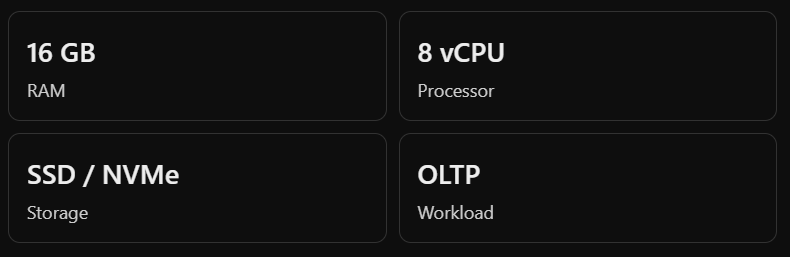
The following example assumes a dedicated database server:
These are starting values, not universal best settings. Benchmark and adjust based on real workload measurements.
On PostgreSQL 18, some configuration defaults and settings have changed from earlier versions. Always validate each parameter against your installed server.
Important PostgreSQL memory settings explained
Parameter
Purpose
Example
shared_buffers
PostgreSQL shared cache
4 GB
effective_cache_size
Planner estimate of available cache
12 GB
work_mem
Memory per sort/hash operation
16 MB
maintenance_work_mem
Memory for maintenance tasks
1 GB
max_connections
Concurrent connection limit
100
shared_buffers is often initially set near 25% of available RAM on a dedicated server, but larger is not always better.
effective_cache_size does not allocate memory. It informs PostgreSQL's query planner about the approximate combined cache available from PostgreSQL and the operating system.
work_mem requires special attention. It is not a per-server allocation: a single query can use it multiple times, and many concurrent queries can consume substantial memory.
For example, 100 sessions executing several memory-intensive operations can consume far more than 100 × 16 MB.
9. Optimize database connections with PgBouncer
Opening too many PostgreSQL connections can consume excessive memory and reduce performance.
PgBouncer is a lightweight connection pooler that helps manage application connection traffic.
The authentication file must contain correctly formatted PgBouncer credentials or SCRAM secrets, with access restricted to the PgBouncer service account. Configure it according to your installed PgBouncer version; it is not created automatically by the example above.
Enable and restart after completing authentication configuration:
Transaction pooling is effective for many web workloads, but applications using session-specific features, session-level prepared statements, or other persistent session state may require changes or session pooling.
Do not expose the PgBouncer port publicly without its own network restrictions, authentication, and transport security.
10. Configure automatic vacuum and analyze
PostgreSQL uses Multi-Version Concurrency Control (MVCC). Updated and deleted rows can leave dead tuples that must eventually be cleaned up.
The archive directory must exist, be writable by PostgreSQL, and have adequate capacity. The command must be adapted to your storage system and tested.
WAL archiving alone is not a backup. You also need a compatible base backup and a validated recovery procedure.
For larger production environments, tools such as pgBackRest or Barman provide more complete backup management, retention, verification, and recovery capabilities.
16. Set connection and query timeouts
Timeouts help prevent abandoned transactions, unexpectedly long queries, and connection resource exhaustion.
A global statement_timeout of zero means no statement timeout. For most applications, configure a suitable timeout at the application-role level instead:
text
ALTER ROLE app_user
SET statement_timeout = '30s';
text
ALTER ROLE app_user
SET idle_in_transaction_session_timeout = '60s';
text
ALTER ROLE app_user
SET lock_timeout = '5s';
These settings affect new sessions for that role.
Choose values based on application requirements. Long-running migrations, reports, and maintenance jobs may require separate roles or session-level overrides.
17. Monitor PostgreSQL health and performance
Useful PostgreSQL monitoring queries include the following.
Active connections
text
SELECT
    datname,
    count(*) AS connections
FROM pg_stat_activity
GROUP BY datname;
SELECT
    schemaname,
    relname,
    pg_size_pretty(
        pg_total_relation_size(relid)
    ) AS total_size
FROM pg_catalog.pg_statio_user_tables
ORDER BY pg_total_relation_size(relid) DESC
LIMIT 10;
Long-running queries
text
SELECT
    pid,
    now() - query_start AS duration,
    state,
    query
FROM pg_stat_activity
WHERE state = 'active'
  AND pid <> pg_backend_pid()
ORDER BY duration DESC;
Check replication status
On a primary server:
text
SELECT *
FROM pg_stat_replication;
No rows can be normal when replication is not configured.
For centralized monitoring, consider Prometheus, postgres_exporter, and Grafana, or a database monitoring platform.
Track connection usage, query latency, disk capacity, WAL growth, deadlocks, replication lag, backup status, and transaction ID age.
18. Apply and validate configuration changes
Before restarting, check configuration errors.
From a privileged PostgreSQL session:
text
SELECT
    name,
    setting,
    unit,
    pending_restart
FROM pg_settings
WHERE pending_restart = true;
Check invalid configuration entries:
text
SELECT *
FROM pg_file_settings
WHERE error IS NOT NULL;
Reload settings that do not require restart:
text
sudo pg_ctlcluster 18 main reload
Restart for settings that require it:
text
sudo pg_ctlcluster 18 main restart
Check the cluster:
text
pg_lsclusters
Check readiness:
text
pg_isready -h 127.0.0.1 -p 5432
Verify key settings:
text
SHOW max_connections;
SHOW shared_buffers;
SHOW effective_cache_size;
SHOW ssl;
SHOW password_encryption;
SHOW listen_addresses;
Verify authentication rules as parsed by PostgreSQL:
text
SELECT *
FROM pg_hba_file_rules
WHERE error IS NOT NULL;
Make configuration changes incrementally, retain a backup of the previous files, and test from both local and remote clients before declaring the deployment complete.
19. Common PostgreSQL problems and solutions
Problem
Likely cause
Solution
Connection refused
PostgreSQL not listening or firewall blocking
Check listen_addresses, port, and firewall
Password authentication failed
Incorrect password or authentication configuration
Reset password and inspect pg_hba.conf
No pg_hba.conf entry
Client IP or database not permitted
Add a narrowly scoped matching rule
SSL connection failed
Missing or invalid TLS setup
Check certificate, hostname, and client TLS mode
Too many connections
Connection limit reached
Inspect sessions and configure pooling
Slow queries
Missing indexes or poor execution plans
Use EXPLAIN ANALYZE and query statistics
Disk space growing
WAL retention, table bloat, or backups
Inspect WAL, replication slots, and vacuum activity
PostgreSQL won't restart
Invalid settings or unavailable resources
Check cluster logs and pg_file_settings
20. Production deployment checklist
Use this checklist before deploying PostgreSQL for real application traffic.
Supported PostgreSQL version installed
Dedicated non-superuser application role created
Strong SCRAM passwords configured
Remote access restricted to trusted IPs
TLS enabled and server certificates validated
Firewall and cloud security rules verified
Memory and connection limits benchmarked
Autovacuum and query statistics enabled
Slow-query and security logging configured
Automated backups and offsite copies configured
Backup restoration successfully tested
Monitoring and alerts configured
Security updates and credential rotation planned
Copy checklist
21. Frequently asked questions
Q1. Which PostgreSQL version should I install on Debian?
Use a currently supported PostgreSQL release compatible with your applications and Debian version. The Debian repository offers a distribution-managed version, while PGDG provides additional supported versions.
Q2. Is it safe to enable PostgreSQL remote access?
Yes, when properly secured using restricted network access, TLS encryption, SCRAM authentication, strong credentials, and least-privilege roles. Avoid exposing PostgreSQL directly to the public internet.
Q3. How much RAM does PostgreSQL need?
Small applications can run with relatively modest RAM, but production requirements depend on database size, concurrency, query patterns, and workload. A dedicated 16 GB server is a reasonable example for demonstrating initial tuning, not a minimum requirement.
Q4. What is the default PostgreSQL port?
PostgreSQL uses TCP port 5432 by default.
Q5. How do I make PostgreSQL faster?
Start by identifying slow queries, improving indexes, checking execution plans, and tuning memory, connection pooling, autovacuum, and storage performance. Measure before and after each change.
Q6. Should I use PgBouncer?
PgBouncer is especially useful when applications create many short-lived database connections. However, pooling mode must be compatible with application behavior.
Q7. How frequently should PostgreSQL be backed up?
Backup frequency depends on your recovery point objective (RPO) and recovery time objective (RTO). Daily logical dumps may be sufficient for development systems, while critical production systems often require continuous WAL archiving and more frequent physical backups.
Conclusion
Installing PostgreSQL on Debian is only the beginning of building a reliable database environment.
A well-configured production deployment should combine secure authentication, restricted remote access, TLS encryption, optimized memory and connection settings, efficient queries, automatic maintenance, monitoring, and recoverable backups.
The most important principle is to avoid treating configuration examples as universally optimal. PostgreSQL performance and security depend on your actual workload, infrastructure, application requirements, and operational processes.
Start with a secure baseline, measure performance, apply changes carefully, and regularly test your recovery procedures.